
AirBuild · Getting started
Learn how to set up Retro 3G(s) AirBuild App
Set up your first project on a retro iPhone, describe what you want to make, and follow the build in chat.
Unbox
Everything in your box.
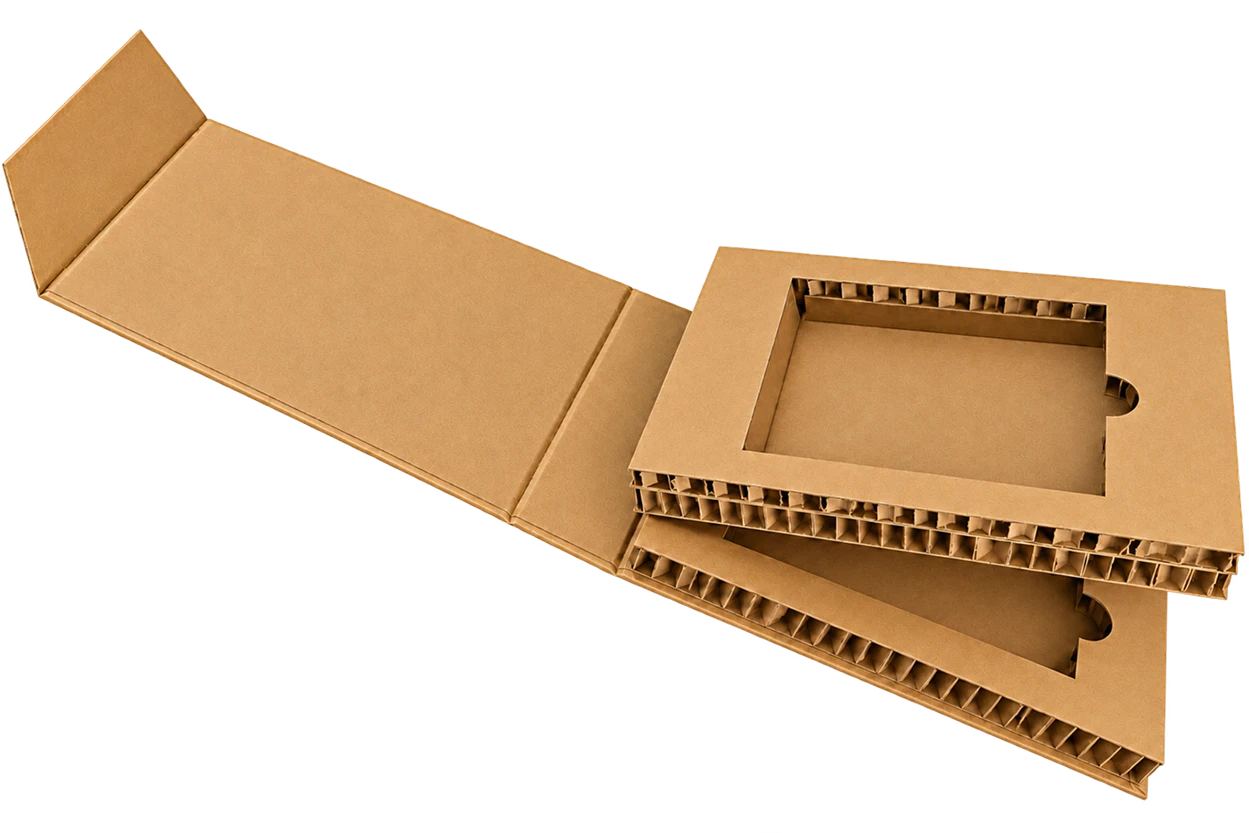
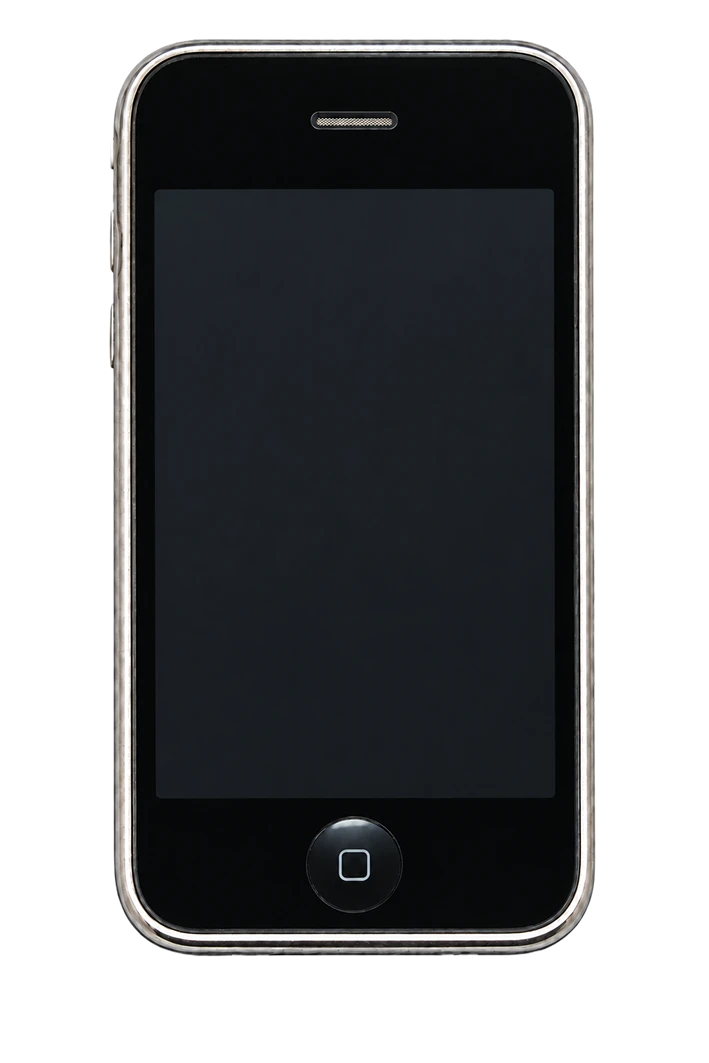
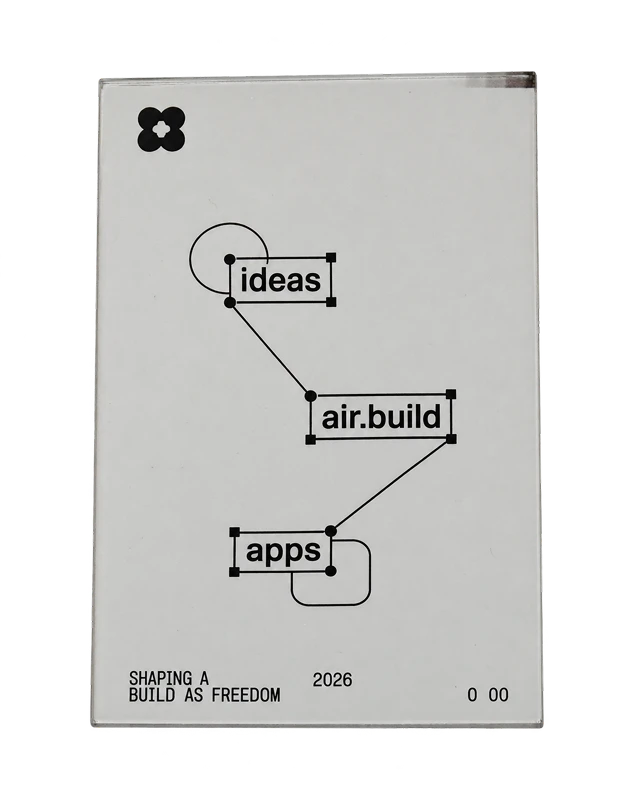
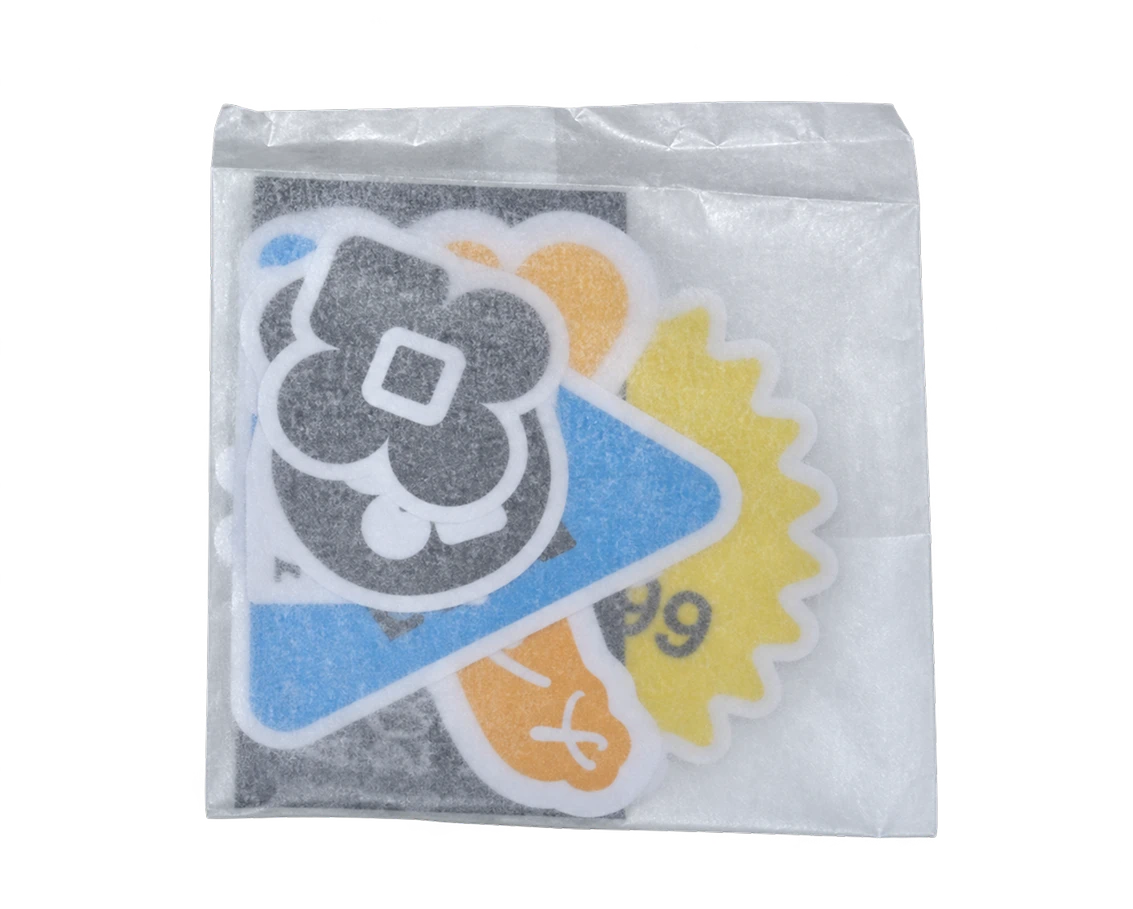
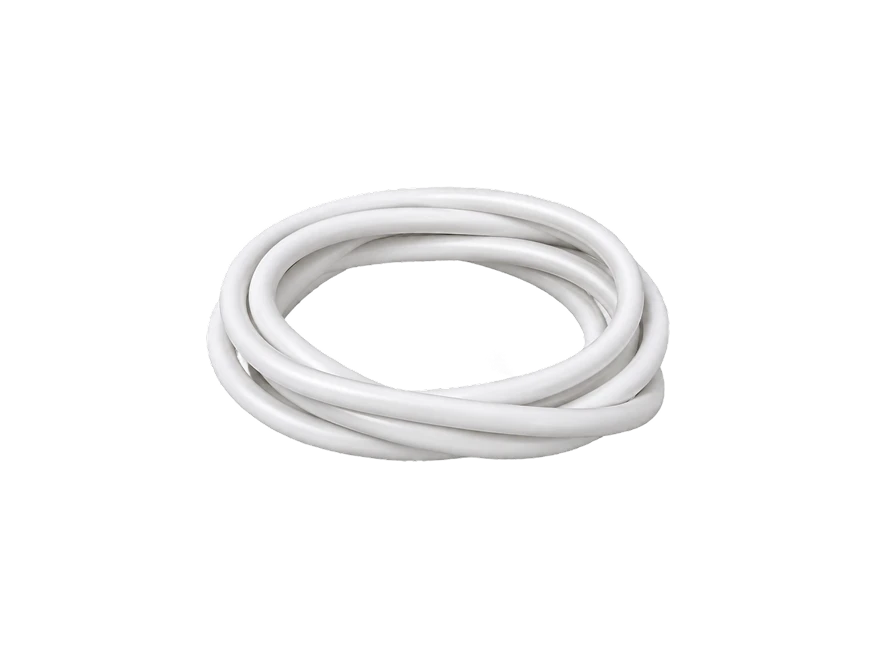
Swipe to explore everything in the box.
This guide starts with AirBuild already installed on your retro iPhone. It walks through opening the app, linking your account when prompted, and creating your first project. The screenshots show the classic iPhone interface.
1. Link your AirBuild account
AI requests on this iPhone use tokens from your AirBuild account’s allowance, so you need to link your AirBuild account before getting started. Once linked, this iPhone will appear in AirBuild. Open a project conversation to begin the authorization flow.
Open AirBuild and enter a project
On the Home screen, tap the blue AirBuild icon. When the project list is empty, you will see Tap + to start a project. Tap + in the top-right corner.
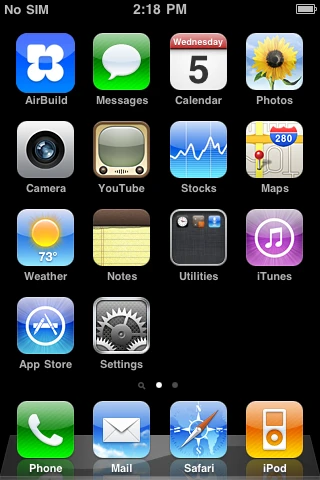
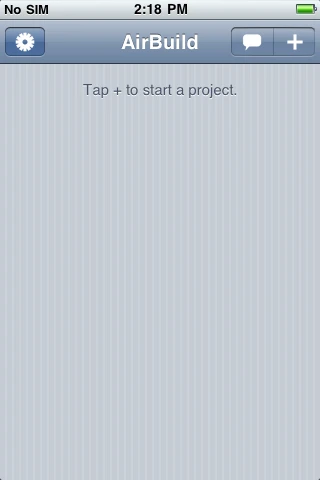
Enter a name in Project Name, then tap Create. For this example, use calculator. Choose a short, recognizable name so you can find the project again later.
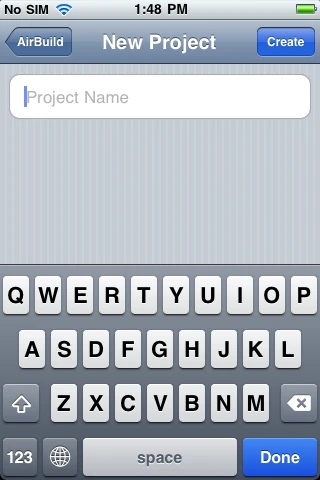
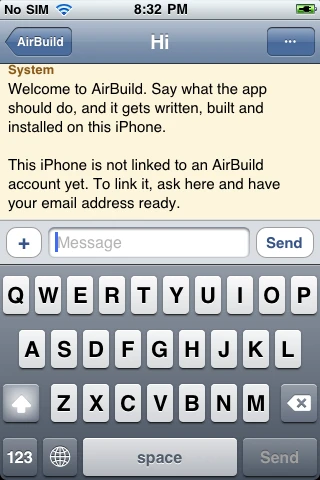
Your new project opens in a chat. Read the welcome message and check the account status. If this iPhone is not linked yet, complete the email authorization flow below. If it is already linked to the account you want to use, continue to describing your app.
Enter your email address in the chat
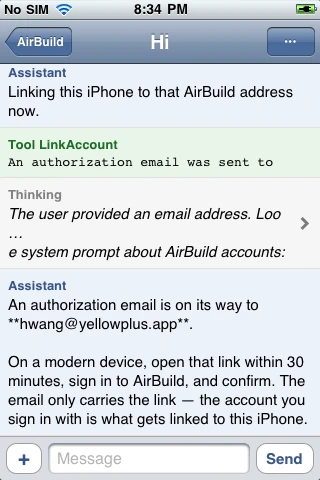
Ask AirBuild to link your account, then enter your email address when prompted and tap Send. AirBuild will confirm that an authorization email is on its way.
Open your mail app and follow the link
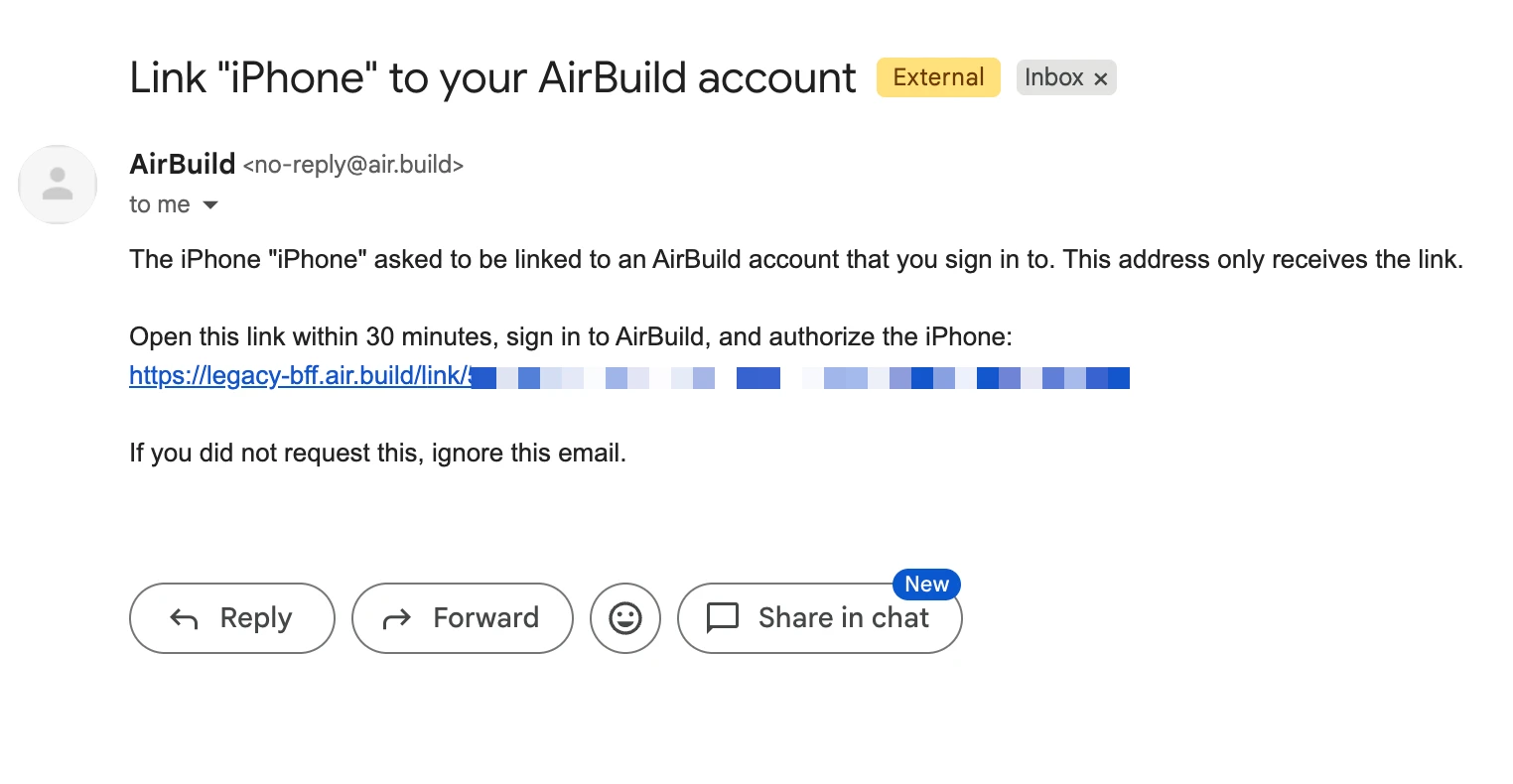
On a modern phone or computer, open the mail app for the address you entered. Look for an email from AirBuild <no-reply@air.build> with a subject like Link "iPhone" to your AirBuild account.
Open the link in that email within 30 minutes. Sign in to the AirBuild account you want to use, then authorize the iPhone on the page that opens.
When the page shows Authorized, your iPhone is linked to your AirBuild account. You can close this page and return to AirBuild.
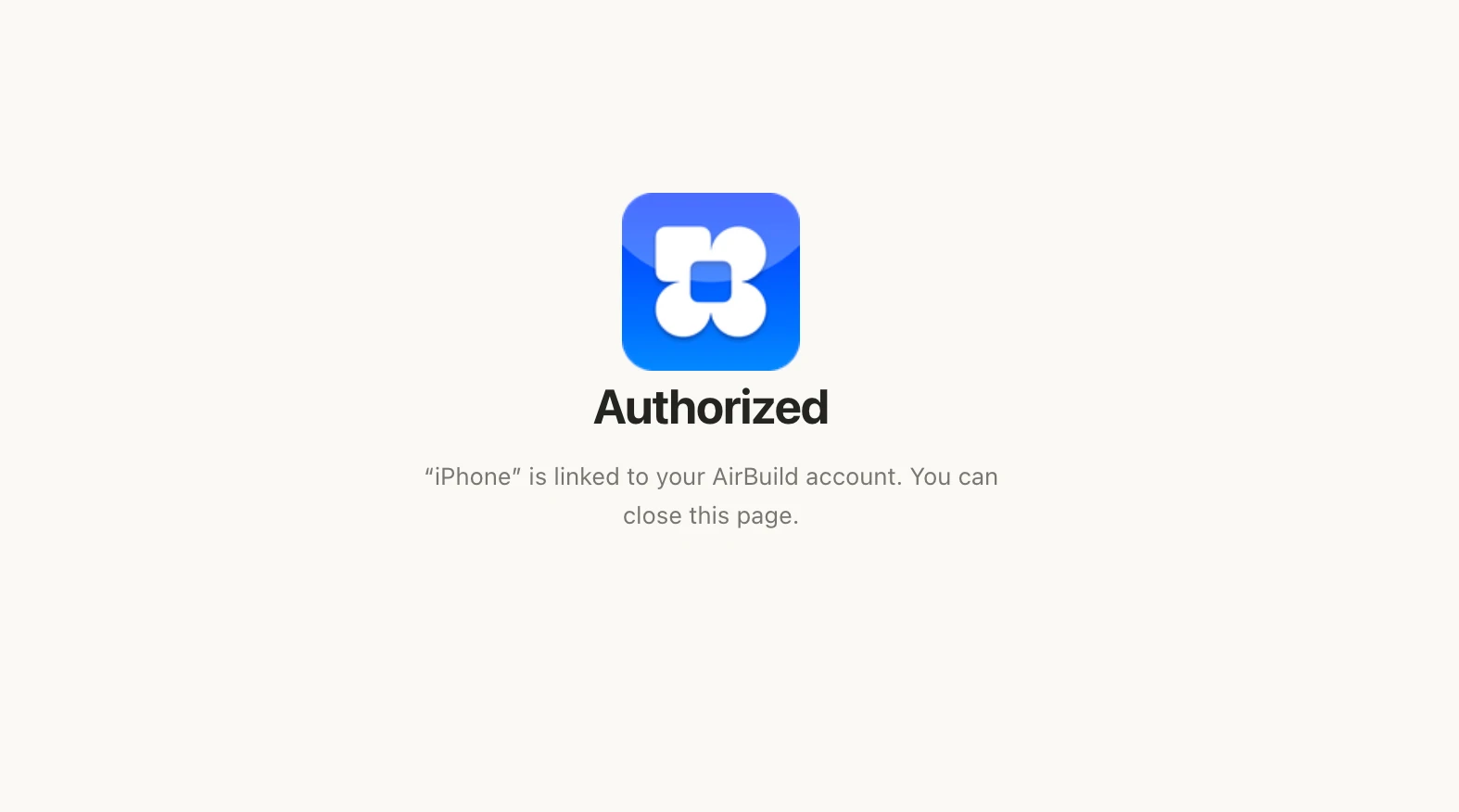
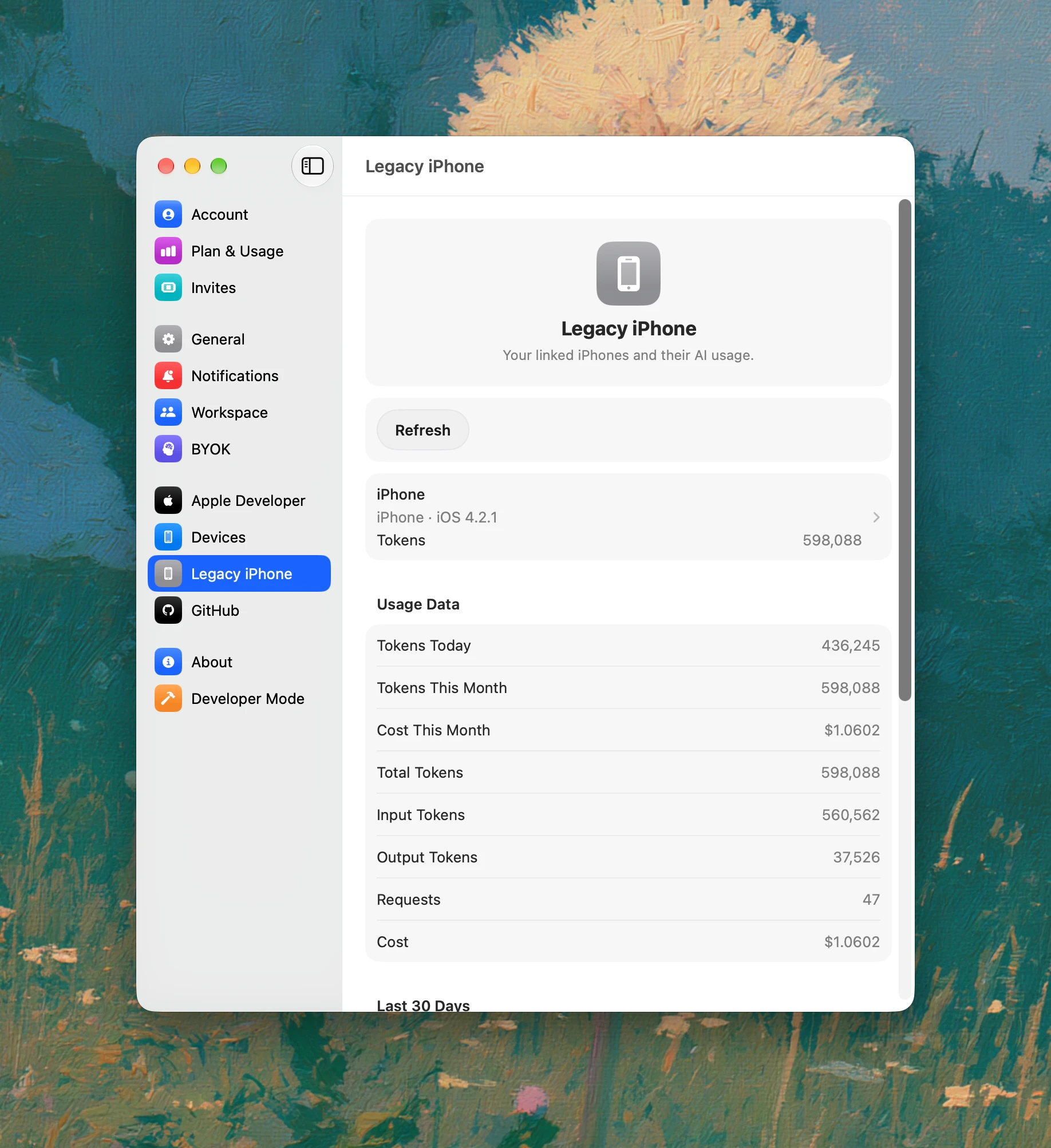
The email address receives the link; the AirBuild account you sign in to on the authorization page is the account that gets linked to this iPhone.
Return to AirBuild
After authorizing the device, return to AirBuild on your retro iPhone and check that the project shows it is linked to your account. You can then continue in the same conversation.
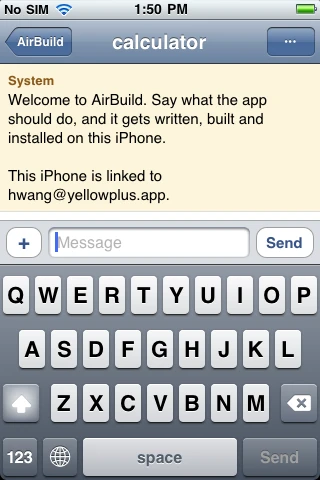
Yes, this is our CEO’s email. If you have any questions, you can contact our CEO directly at hwang@yellowplus.app.
2. Describe your app
Tap the Message field at the bottom and describe what you want to build. The example starts with:
Create a retro style calculator for me
For a more specific starting point, include the main functions and the appearance you want:
Create a retro-style calculator with addition, subtraction, multiplication, and division. Use large buttons, clear digits, and a classic iPhone look.
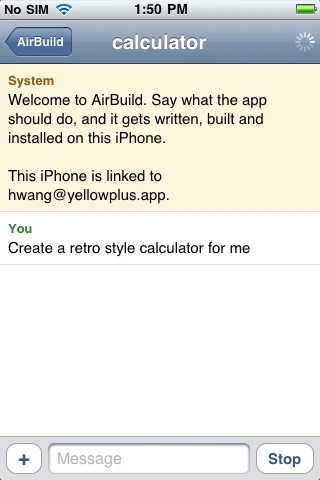
Tap Send when you are ready. Start with one small app and a few essential features; you can ask for changes after trying the first version.
3. Follow the build
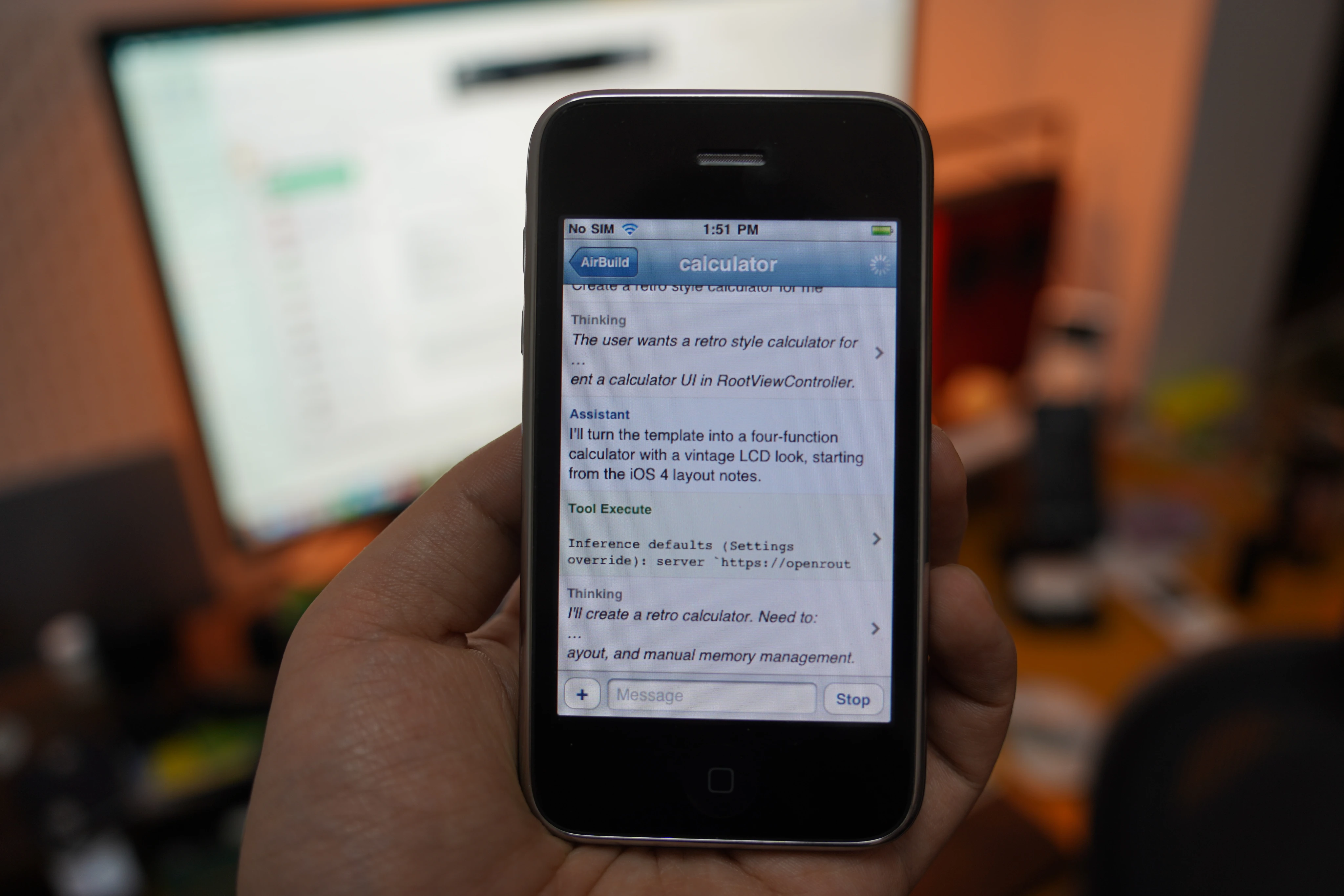
AirBuild begins working on your request and posts updates in the conversation. You may see progress messages, replies, and tool activity. While a task is running, the bottom-right button changes to Stop.
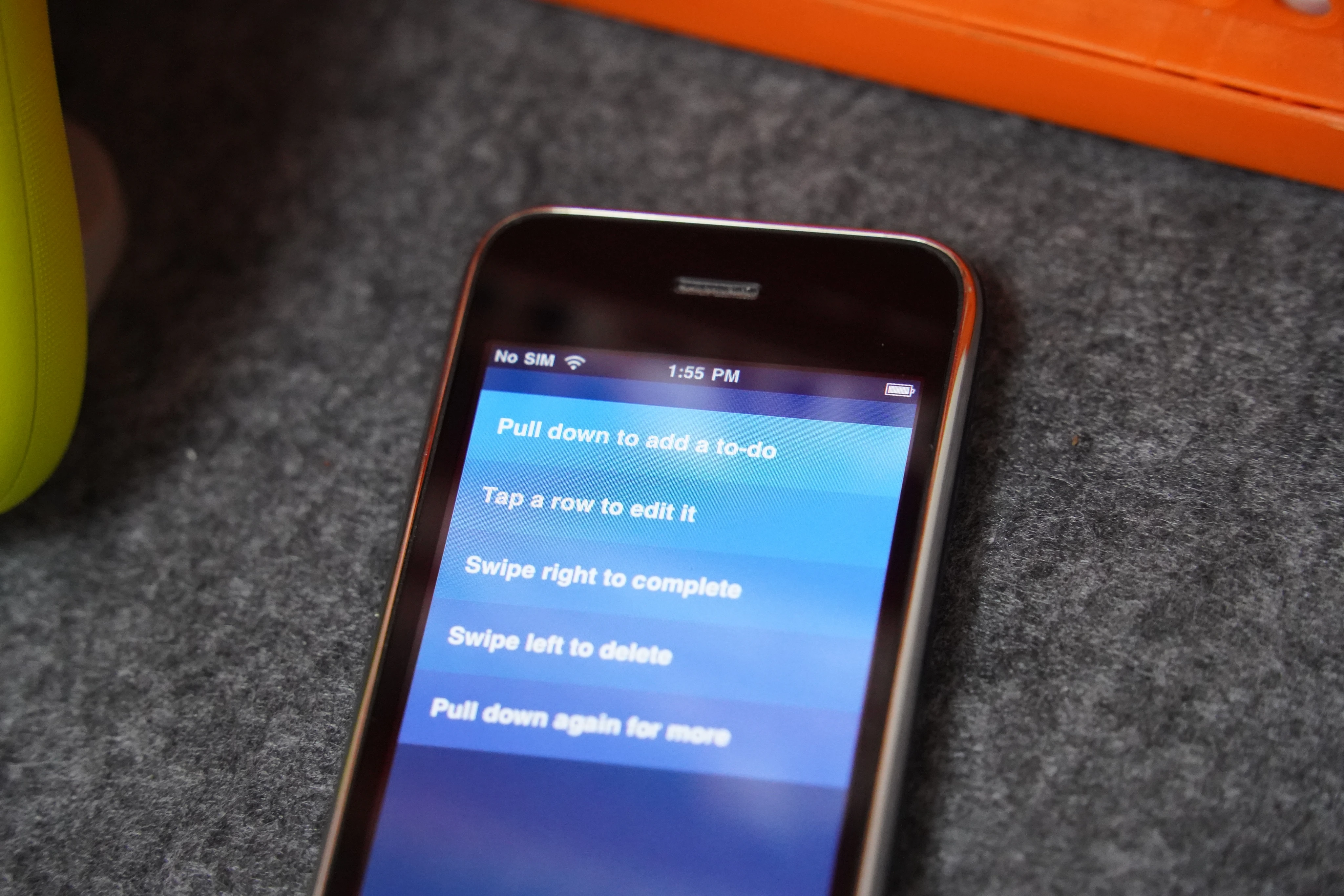
The screenshots below show a separate project named Clear. Its request is for a blue, Clear-style to-do list. AirBuild outlines the planned interface, including a full-screen list, a blue gradient, pull-down creation, and swipe actions.
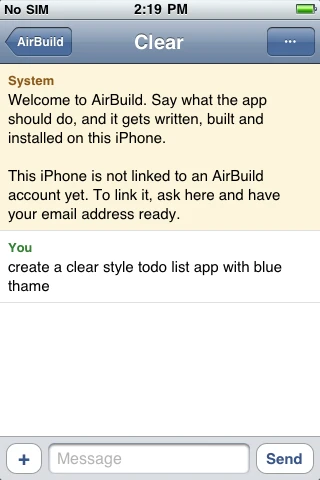
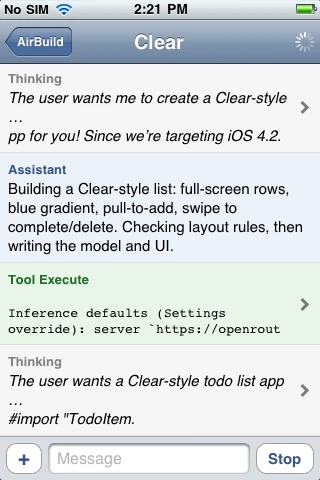
If the plan does not match your idea, tap Stop and send a clarification. Otherwise, wait for a clear completion message before opening the generated app on your iPhone. These screenshots show work in progress, rather than a completed installation.
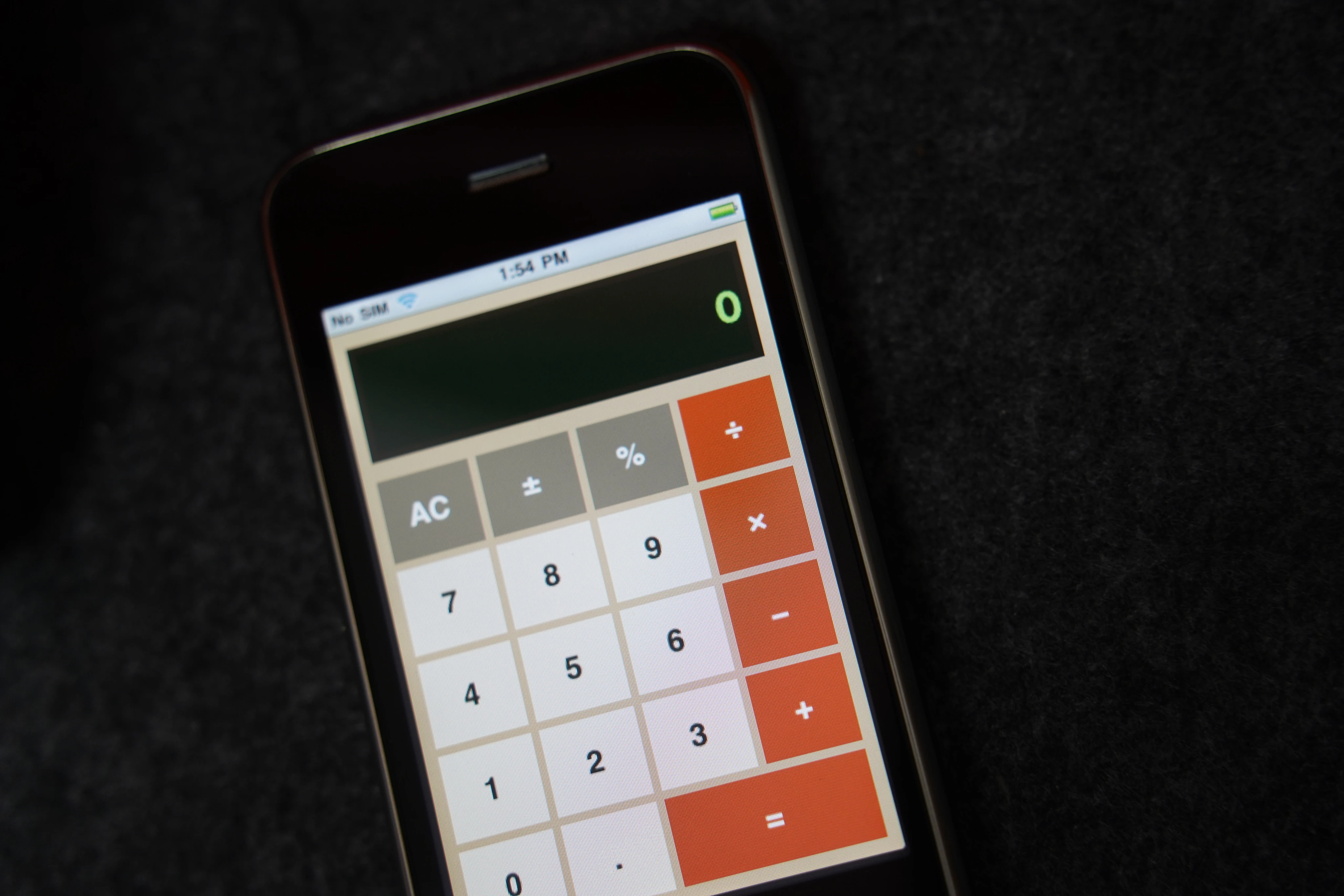
Try the main functions first. For the calculator, check each operation and the clear button. If something fails, tell AirBuild what you tapped, what you expected, and what happened.
4. Refine the app through chat
Return to the same conversation to request changes. Keep each request focused so you can check the result:
Make the number buttons larger and add visual feedback when I press them.
Make the result easier to read and give the clear button a different color.
Wait for the update to finish, then try the app again. Get the core features working before adding more screens or fine-tuning the styling.
5. Return to an existing project
Tap AirBuild at the top left of the chat to return to your project list. Tap a project name to reopen its conversation and continue working.
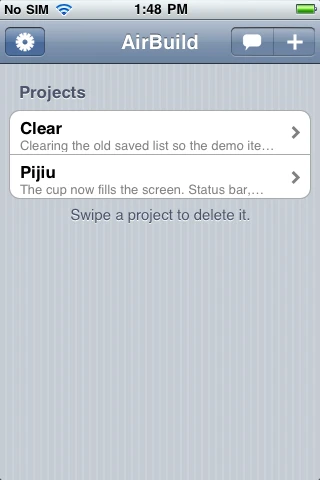
Keep follow-up requests in the same project so the conversation stays together. You can start another project with + whenever you want to try a different idea.
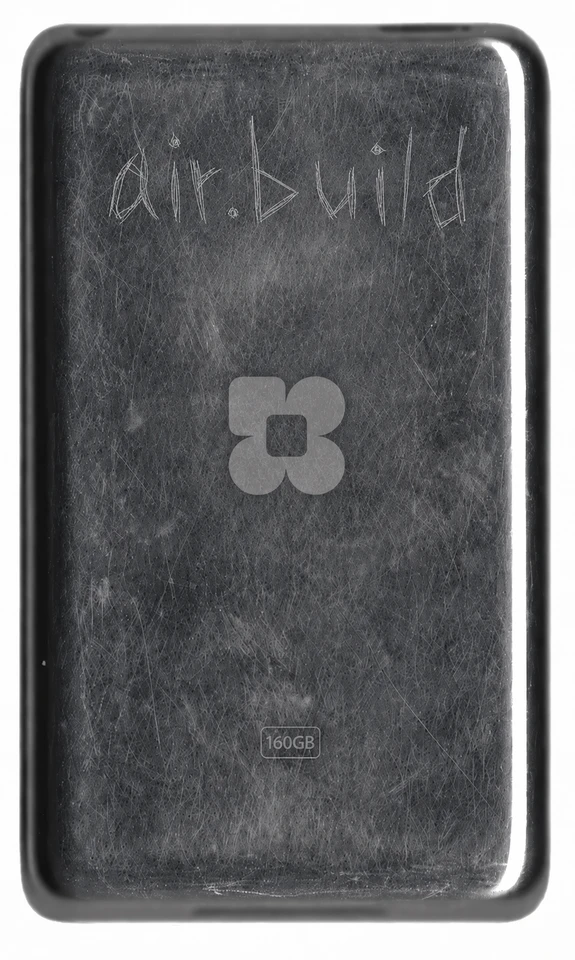
These iPhones are second-hand. Cosmetic condition varies: some look newer, while others show more wear. On some devices, the Home button may be less responsive. Thank you for your understanding.
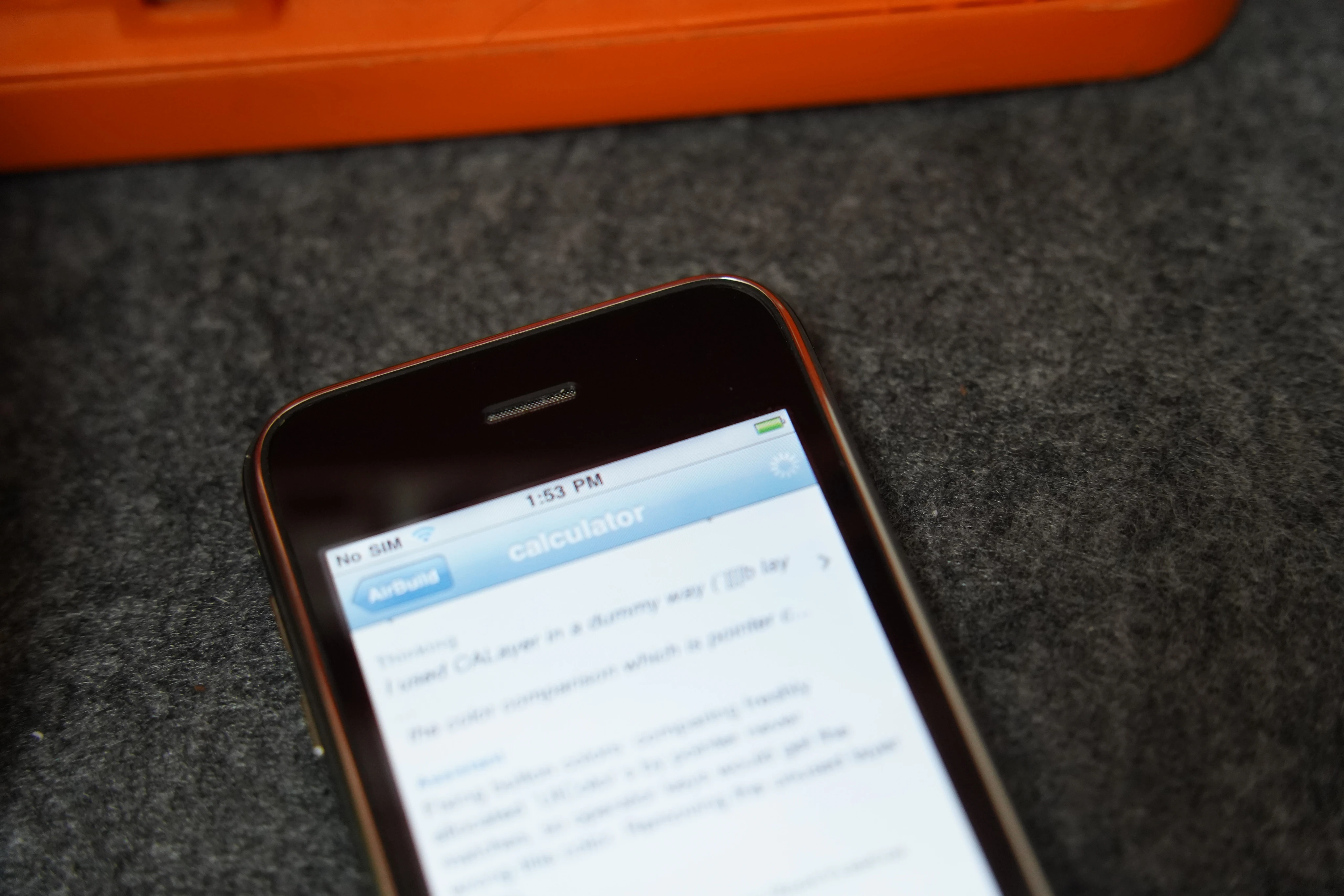
For the story behind this classic iPhone experience, read The First App Store, Reimagined with AI Coding.


AirBuild, Your idea. Your AI team. A working iOS App.